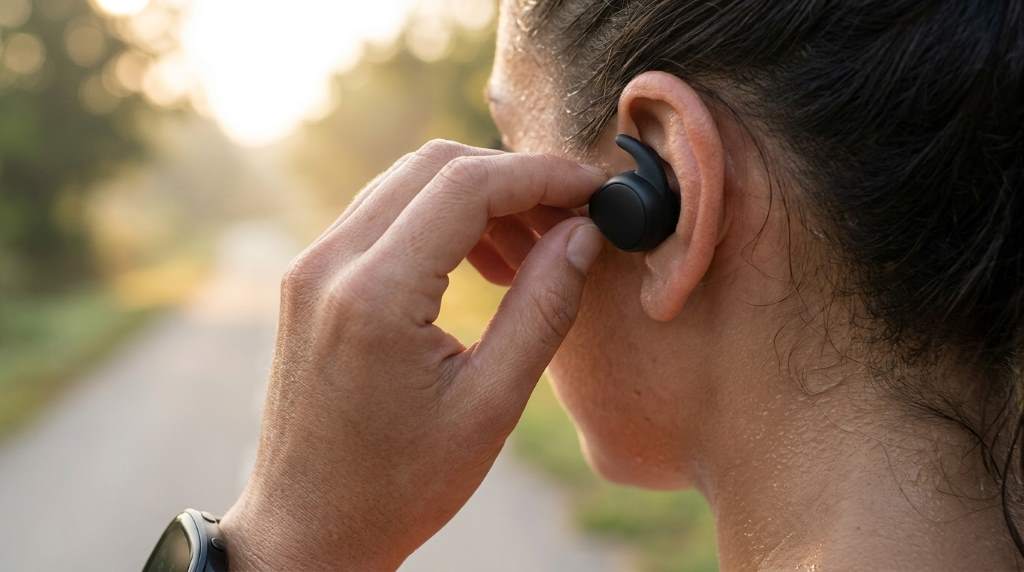
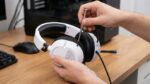


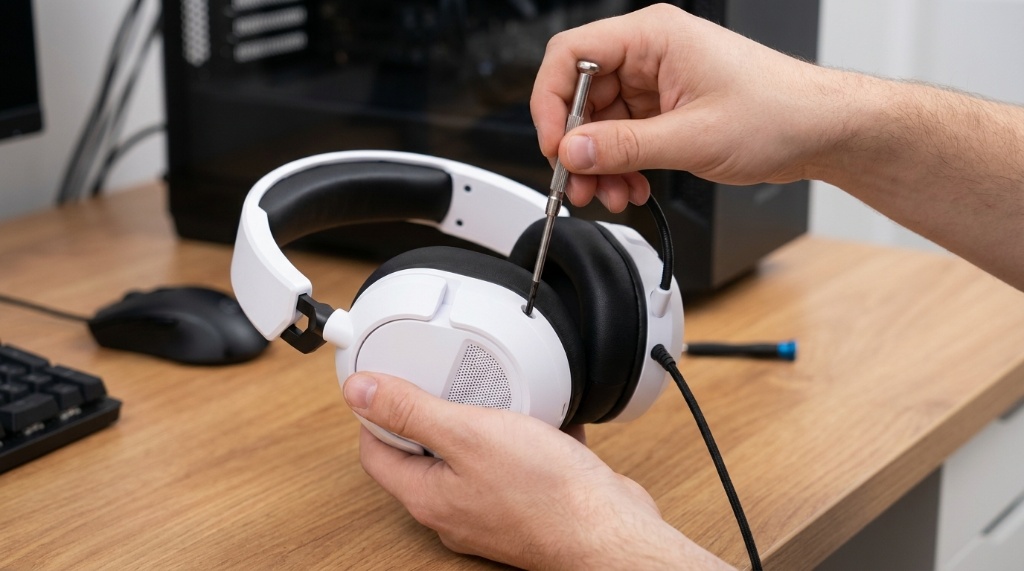
Your AOC Wired Gaming Headset has no sound? Start with the cable, port, and selected output device. Plug it in firmly, choose the headset in your audio settings, and raise every volume control. Then test it on another device to separate a headset fault from a PC or console setting. Many problems come from a loose plug, wrong jack, muted mic, or disabled device. A quick check of the AOC Wired Gaming Headset specs also helps. It shows whether your model uses one 3.5mm plug, dual plugs, or USB. With that detail confirmed, the troubleshooting steps below become much easier to follow.
Most AOC wired gaming headset sound issues are fixed by reseating the cable, selecting the correct playback device, and checking mute and volume controls. If sound still fails, test another cable or adapter, update or reinstall audio drivers, and try the headset on a phone or console. Hardware damage is less common, but a broken plug or frayed wire requires repair or replacement.
Key Takeaways
- Start with the cable, port, and output device before changing drivers.
- Test on another device to tell headset faults from system settings.
- Crackling often comes from loose connections, interference, or bad adapters.
- Mic problems usually involve mute, input selection, privacy settings, or boom position.
- Console and PC settings can override headset controls, so check both.
Check the Cable, Port, and Output Device First
The first fix is physical. A loose or wrong connection causes most no-sound complaints. Therefore, unplug the headset and plug it back in with firm pressure. If your model has a detachable cable, remove it and reconnect both ends. Then check the port on your PC, controller, or console.
Many AOC wired gaming headsets use a single 3.5mm TRRS plug. That plug carries both headphone audio and microphone audio. If your PC has separate green and pink jacks, you need a splitter. A single plug in the green jack may give sound but no microphone. On the other hand, a dual-plug headset needs both jacks connected correctly.
USB headsets need a different approach. Plug the USB connector directly into the PC or console. Avoid unpowered USB hubs because they can cause dropouts. After that, open your sound settings and select the headset as the output device. If you use a monitor, check whether the monitor is stealing the audio output.
Fix No Sound or One-Sided Audio
No sound usually means the wrong output device is selected. In Windows, open Settings, then System, then Sound. Under Output, choose your headset. On Mac, open System Settings, then Sound, then Output. On consoles, open the audio settings and set output to the headset or controller.
Next, check the volume in three places. Raise the inline volume wheel, the system volume, and the game volume. Also, make sure the headset is not muted. Some models mute when you push the mic boom upward. Others have a mute button on the cable.
One-sided audio has a few common causes. First, the plug may not be fully inserted. Push it in until it clicks or stops. Second, the audio balance may be shifted to one side. Open your sound settings and check left-right balance. Third, a damaged driver or cable can cut one channel. Test the headset on another device to confirm.
If you hear sound only in one ear, try a mono audio setting as a test. Mono audio combines both channels into one. If both ears then work, the headset hardware is probably fine. The issue is likely a stereo setting, a bad file, or a game audio bug.
Stop Crackling, Static, and Buzzing
Crackling, static, and buzzing often come from a poor connection. Reseat the plug and try a different port. If you use a front-panel jack, switch to a rear motherboard port. Rear ports usually have better shielding and less interference. Also, avoid extension cables unless they are necessary.
Interference can also cause noise. Move the cable away from power supplies, routers, and phone chargers. If the buzz changes when you move your mouse, the issue may be USB power noise. In that case, plug the headset into a different USB controller or a powered hub.
Software enhancements can add noise too. Disable spatial sound, equalizers, and audio enhancements one at a time. Lower the volume in Windows and raise the inline volume instead. If the noise disappears, the problem was likely digital clipping or a bad enhancement setting.
For microphone monitoring, feedback can sound like buzzing. Turn off sidetone or mic monitoring in your chat app. Then adjust the mic gain. If the noise remains, try another cable or adapter. A frayed cable often causes crackling when it bends.
Solve Microphone and Chat Audio Problems
Microphone problems usually involve input selection, mute, or boom position. First, select the correct input device in your chat app. In Windows, open Settings, then Privacy, then Microphone. Make sure app access is allowed. Then check the mute switch on the headset or cable.
Position the boom about one to two inches from your mouth. Keep it slightly to the side to avoid breath sounds. If others hear echo, use headphones instead of speakers. Also, lower the mic gain and enable noise suppression in your chat app.
If nobody can hear you, test the mic with Voice Recorder or another recording app. Speak normally and play it back. If the recording is silent, try the headset on another device. If it works elsewhere, your PC input settings are the problem. If it fails everywhere, the mic or cable may be faulty.
For dual-plug headsets, confirm the mic plug is in the pink jack. For single-plug headsets on a PC, use a TRRS splitter. Some splitters are wired for different standards, so try another splitter if the mic still fails. On consoles, check the controller mute and chat mixer.
Adjust Windows, Console, and Game Settings
Software settings can override hardware controls. Therefore, check your platform settings before assuming the headset is broken. The table below shows common places to look.
| Platform | Setting to Check | Common Fix |
|---|---|---|
| Windows | Sound output and input | Select the headset, then set it as default device. |
| Windows | Communications tab | Set Windows to do nothing when calls arrive. |
| PlayStation | Audio output | Choose headset or controller, then adjust chat balance. |
| Xbox | Chat mixer | Raise headset volume and game volume separately. |
| Nintendo Switch | TV or headphone output | Unplug and replug the headset after docking. |
In games, check the audio output device. Some games default to speakers even when Windows uses the headset. Also, check voice chat settings. A game may send chat audio to speakers and game audio to the headset. That split can make the headset seem broken.
On Windows, open the old Sound Control Panel for more detail. Go to Playback, select the headset, then Properties. Under Advanced, change the sample rate to 16-bit, 44100 Hz or 48000 Hz. Then test again. If that fails, disable exclusive mode for the device.
Update or Reinstall Audio Drivers
Drivers matter mainly for USB headsets and USB adapters. For analog 3.5mm headsets, the driver belongs to your motherboard or controller. Still, a corrupt audio driver can cause no sound, crackling, or mic failure. Open Device Manager and expand Sound, video and game controllers.
Right-click your audio device and choose Update driver. If that does not help, uninstall the device and restart your PC. Windows will reinstall a basic driver automatically. For USB headsets, also check the manufacturer support page. Avoid third-party driver updater tools because they can install the wrong package.
If you use a USB audio adapter, unplug it and try another USB port. Then test the adapter on another computer. Some adapters need no driver, while others need a specific one. If the adapter works on another PC, the problem is your PC settings or USB controller.
Test the Headset on Another Device
A second device is the fastest way to isolate the fault. Plug the headset into a phone, tablet, laptop, or console. If it works there, the headset is probably fine. The issue is likely your original PC or console settings. If it fails everywhere, the headset or cable is the likely cause.
For detachable cables, try a replacement cable. For fixed cables, gently wiggle the plug while audio plays. If the sound cuts in and out, the plug or jack is damaged. For USB headsets, try a different USB port and a different computer. Also, test the mic on the second device.
If the headset works on a phone but not a PC, check the plug type. A phone with a 3.5mm jack usually accepts TRRS. A PC with separate jacks needs a splitter. If the headset works on a console but not a PC, check the PC input and output settings again.
Common Mistakes and When to Replace the Headset
Some fixes make sound issues worse. For example, do not pull the cable by the wire. Pull the plug instead. Do not set every volume to maximum because that can cause distortion. Do not disable all audio enhancements at once because you may lose useful features.
Also, avoid plugging a 3.5mm headset into a line-in or mic-only jack. Avoid using a USB hub with too many devices. Avoid bending the boom mic sharply. These habits can damage the cable, plug, or microphone over time.
Replace the headset if the plug is bent, the cable is exposed, or the mic fails on every device. Replace it if wiggling the cable causes constant cutouts. If the headset is under warranty, contact AOC support before buying a new one. Clean the ear pads and ports regularly to prevent debris issues.
Frequently Asked Questions
Why does my AOC wired gaming headset have no sound?
Your PC or console is likely using another output device, or the headset is muted or plugged into the wrong jack.
How do I fix one-sided audio on my headset?
Push the plug in fully, check left-right balance in sound settings, and test the headset on another device.
Why does my headset crackle or buzz?
Crackling usually comes from a loose connection, a bad adapter, or interference from nearby electronics.
How can I get my microphone working?
Select the headset mic as the input device, unmute it, allow mic access in privacy settings, and position the boom correctly.
Should I use Windows Sonic or spatial sound?
You can use it for games and movies, but disable it during troubleshooting because it can cause muffled or missing audio.
Conclusion
Start with the simple checks first. Reseat the cable, choose the correct output and input devices, and test the headset on another device. If those steps fail, update audio drivers, try a different adapter, and inspect the cable for damage. Most AOC wired gaming headset sound issues are solvable without replacing the headset. If the problem continues across multiple devices, contact support or replace the faulty cable or headset.