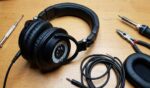
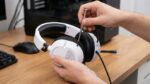
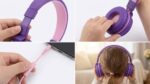


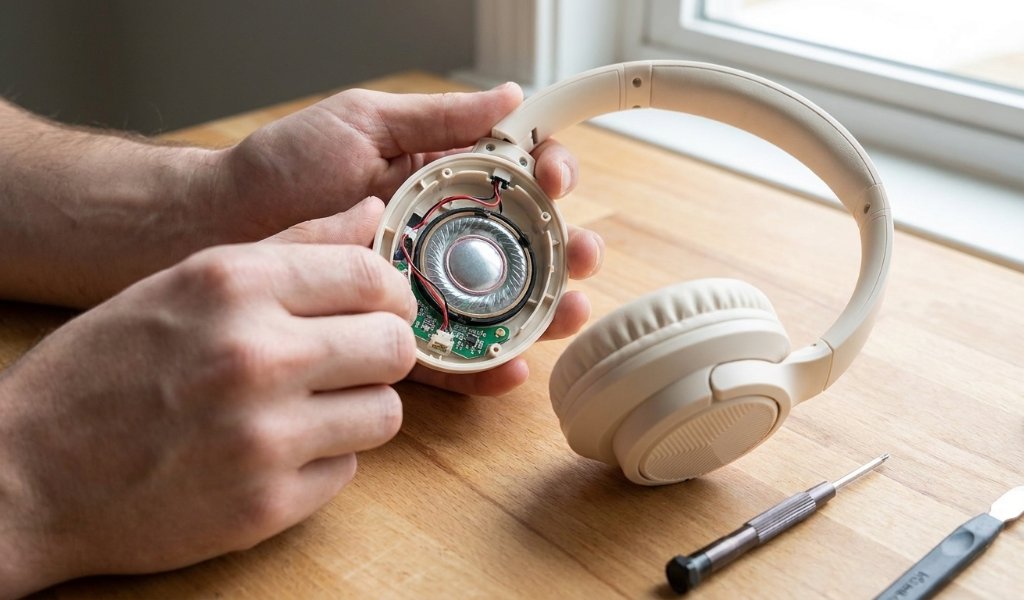
Most sound problems with these over-ear headphones trace back to three causes: a weak connection, a wrong device setting, or a drained battery. Working through those checks in order fixes most complaints within minutes. If your audio sounds muffled, one-sided, or silent, start with the cable and the charge level. A detailed review of the Botesty Over-Ear Headphones helps you confirm expected performance before you troubleshoot. That way you can tell a setting issue from a hardware fault.
Quick Answer
Most Botesty Over-Ear Headphones sound issues come from a poor connection, a low battery, or a device setting that limits or splits the audio. Charge the headphones fully, reseat the cable or re-pair the Bluetooth link, and check your device’s balance and volume settings. If the problem continues across two different devices, the fault is likely inside the headphones themselves.
Key Takeaways
- Charge fully before diagnosing anything else, since low power causes volume drops and cutouts.
- Test on a second device to separate headphone faults from source problems.
- Check balance, mono audio, and equalizer settings on your phone or computer.
- Clean the ear pads and driver grilles, because debris causes muffled or uneven sound.
- Perform a factory reset only after basic checks fail, since it erases pairing memory.
- Replace the cable before replacing the headphones if audio cuts out on one side.
Start With the Simplest Checks First
Before you dig into settings or software, rule out the obvious physical causes. These steps take only a few minutes and resolve a surprising number of complaints.
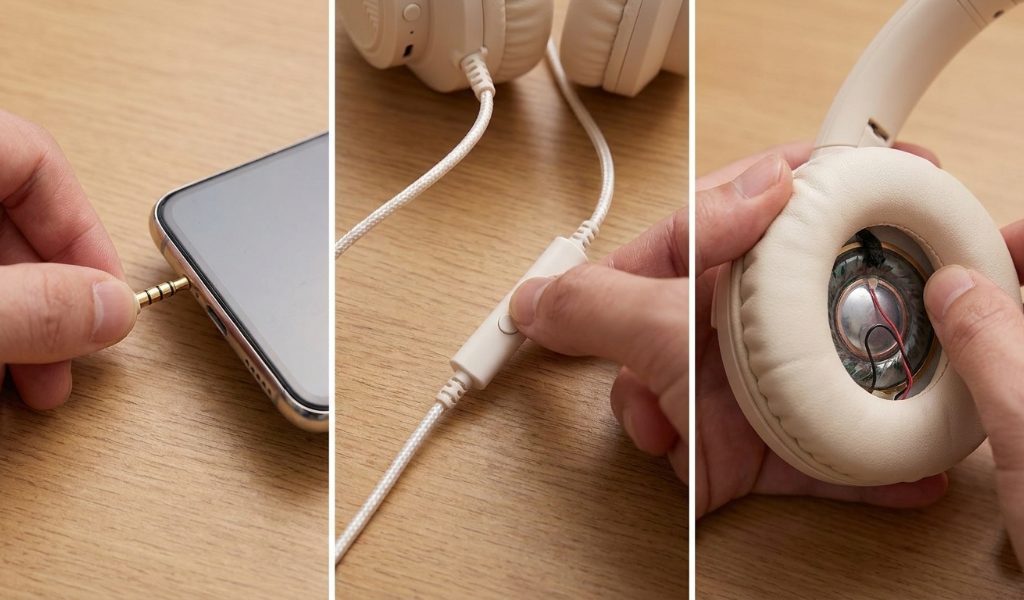
- Charge the headphones to full and leave them plugged in for at least 30 minutes.
- Unplug and replug the 3.5mm cable if your model uses one.
- Confirm the source device is not muted and the volume is above zero.
- Test the headphones with a phone, laptop, or tablet you have not used before.
Testing on a second device matters more than most people realize. If the sound is clean everywhere else, the headphones are fine and the original device is the problem. If the sound is bad on every device, the issue sits inside the headphones or the cable.
Fix Muffled, Distorted, or Crackling Audio
Distortion usually has one of three sources: over-amplified audio, a damaged driver, or debris blocking the grille. Start by lowering the volume on your device and raising it on the headphones, or the reverse. Matching levels between the two often clears crackling that appears only at high volume.
Check the ear pads next. Compressed foam and trapped dust block sound and make audio sound dull. A soft dry brush and a microfiber cloth remove most buildup without risking the driver.
If crackling appears only when you move your head, the cable or the internal wiring is the likely cause. Wiggle the plug gently while audio plays. Any change in sound confirms a loose connection.
What to Do When Only One Side Works
One-sided audio almost always points to a connection problem, not a dead driver. Swap the cable ends if your headphones use a detachable cable. Many cables have a specific left and right orientation, so reversing them tells you quickly whether the cable is at fault.
Next, check the balance setting on your device. Phones and computers both allow you to shift audio to one side, and that setting sometimes gets changed by accident. On most systems you can find it under accessibility or sound settings.
If the balance is centered and the cable is fine, try the headphones on another device. A persistent one-sided fault across devices usually means the driver or its wiring has failed.
Bluetooth Pairing and Connection Troubleshooting
Bluetooth sound issues often look like hardware problems but are not. Dropouts, stuttering, and sudden volume changes usually trace back to interference or a stale pairing.
Start by forgetting the device in your Bluetooth settings and pairing again from scratch. Old pairing data can conflict after firmware updates or system changes.
Keep the headphones within about 30 feet of the source and remove obstacles between them. Wi-Fi routers, microwaves, and USB 3.0 ports all emit signals that interfere with Bluetooth audio.
If your device supports multiple codecs, try switching between them. Some codecs prioritize stability while others prioritize quality, and the trade-off matters when the connection is weak.
Adjust Device and App Settings That Affect Sound
Your phone or computer has several settings that quietly change how headphones sound. Audio balance, mono audio, spatial audio, and equalizer presets all affect output.
Check the following on your device:
- Balance slider set to center
- Mono audio turned off unless you need it
- Volume limit or hearing protection disabled temporarily
- Equalizer set to flat or off
- App-specific volume not turned down
Some streaming apps apply their own volume normalization. If only one app sounds quiet, check that app’s settings before blaming the headphones.
Cleaning and Physical Wear That Causes Sound Problems
Wear and tear affects sound more than most owners expect. Ear pads flatten over time, which changes the seal and reduces bass. Replacing worn pads restores much of the original sound.
Clean the driver grilles with a dry soft brush. Do not use compressed air directly on the driver, because the pressure can damage the diaphragm. Avoid liquids near the speaker elements.
Inspect the headband and hinges for cracks. A loose hinge can pull on internal wiring and cause intermittent audio. If the frame is damaged, repair may cost more than replacement.
When a Reset Helps and When It Does Not
A factory reset clears pairing memory and restores default settings. It helps when Bluetooth behaves strangely or when settings have become corrupted.
Most headphones reset through a button combination, such as holding power and volume down together for several seconds. Check your manual for the exact sequence, because guessing can trigger other functions.
A reset will not fix a damaged driver, a broken cable, or worn ear pads. If the problem survives a reset and appears on multiple devices, hardware replacement is the realistic next step.
Common Mistakes That Make Sound Issues Worse
- Assuming the headphones are broken before testing another device.
- Using a damaged or low-quality replacement cable.
- Turning up the volume to compensate for muffled sound, which increases distortion.
- Cleaning the drivers with water, alcohol, or compressed air.
- Skipping firmware updates that may fix known connection bugs.
- Storing the headphones loose in a bag where the cable bends sharply.
Each of these mistakes costs time or money. Testing methodically saves both.
Frequently Asked Questions
Why do my Botesty Over-Ear Headphones sound muffled?
Muffled audio usually comes from debris on the driver grille, compressed ear pads, or a device equalizer that cuts treble.
How do I fix one-sided audio on over-ear headphones?
Reseat or swap the cable, check the balance setting on your device, and test on a second source before assuming the driver failed.
Can a low battery cause sound problems?
Yes, low battery often causes volume drops, cutouts, and Bluetooth stuttering, so charge fully before troubleshooting.
Should I reset my headphones before contacting support?
Yes, a factory reset is worth trying first because it clears pairing conflicts and restores default settings.
Do over-ear headphones work with both wired and Bluetooth connections?
Many models support both, but connection options vary by model, so check your manual or product listing.
Conclusion
Most sound issues with these headphones come down to a short list of causes. Charge them fully, reseat the cable, re-pair Bluetooth, and check your device settings. Clean the ear pads and grilles if audio sounds dull. Reset the headphones only after simpler checks fail. If the problem follows the headphones across every device, replacement is the practical answer. Start with the easiest check and work forward, because that approach saves time and avoids unnecessary returns.