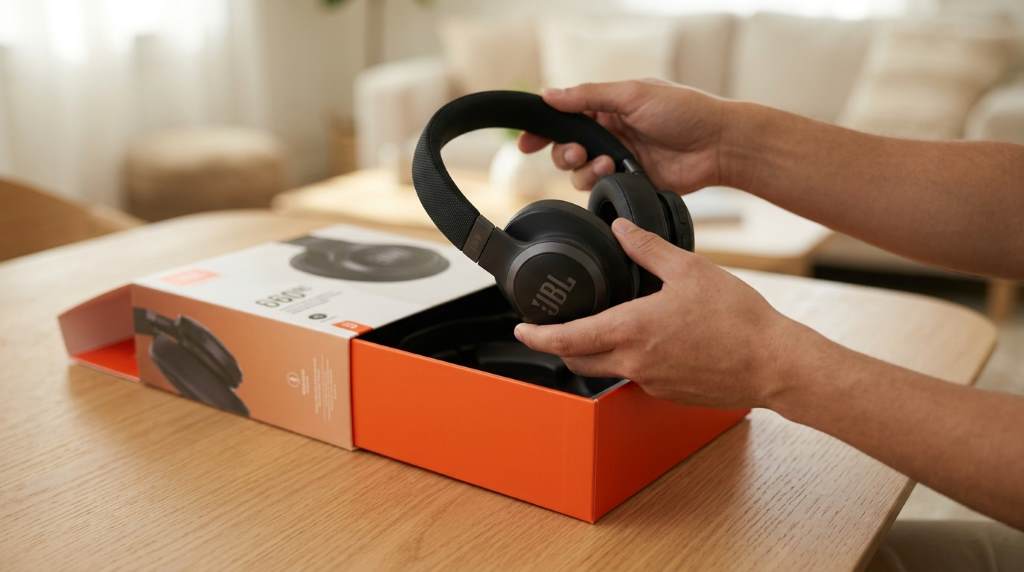

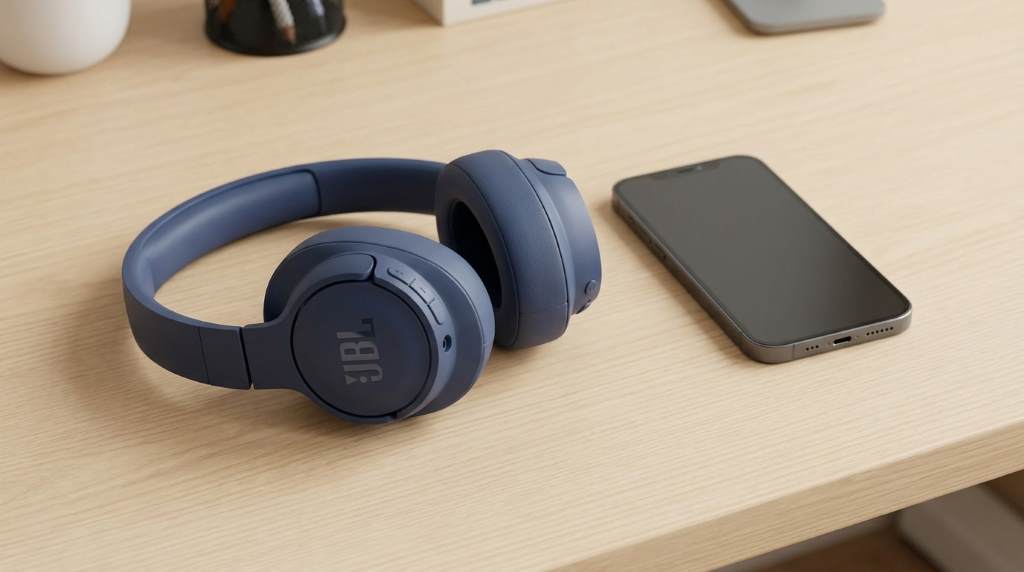
To connect JBL Tune 720BT headphones, turn them on and activate Bluetooth pairing mode. Then open your device’s Bluetooth settings, select JBL Tune 720BT, and confirm the connection. Most devices connect within seconds and remember the headphones for future use.
Wireless headphone adoption continues growing across personal and professional environments. Recent market data shows Bluetooth audio devices remain among the most widely used consumer electronics categories. Many users purchase JBL Tune 720BT headphones for their long battery life and dependable wireless performance. However, first time pairing can sometimes create confusion. This guide explains every connection method, troubleshooting step, and practical setup technique for a smooth listening experience.
Understanding JBL Tune 720BT Connectivity
The JBL Tune 720BT uses Bluetooth wireless technology for audio transmission. As a result, it works with smartphones, tablets, laptops, desktops, and smart televisions.
Unlike wired headphones, Bluetooth devices require an initial pairing process. Once completed, future connections usually happen automatically.
Key Connection Features
- Bluetooth wireless pairing
- Multi device compatibility
- Automatic reconnection support
- Voice assistant integration
- Extended wireless range
- Fast pairing capability
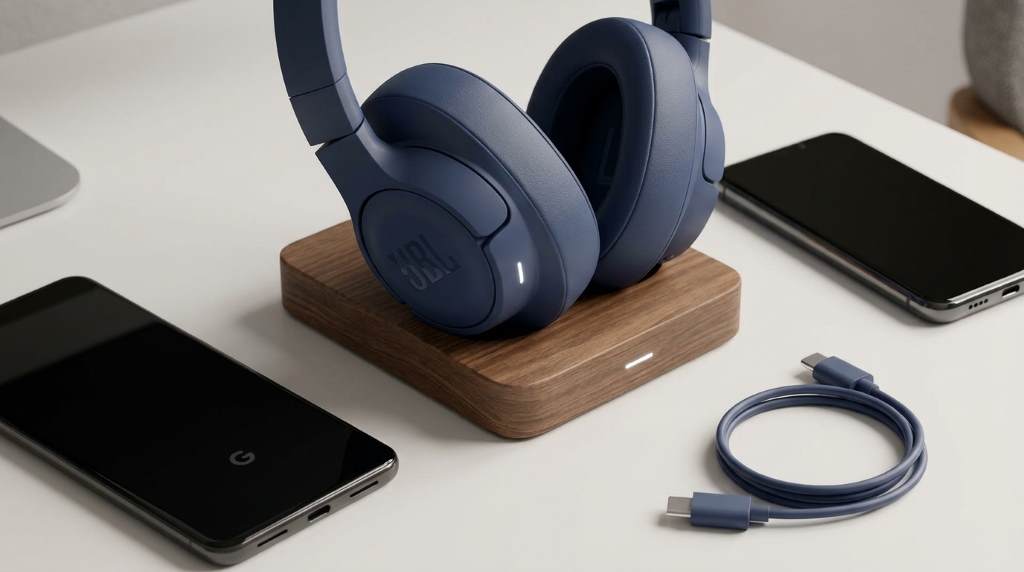
How to Put JBL Tune 720BT Into Pairing Mode
Before connecting any device, pairing mode must be activated. This allows nearby devices to discover the headphones.
Start by ensuring the headphones have sufficient battery power. A low battery can interrupt the pairing process.
Steps to Activate Pairing Mode
- Press and hold the power button.
- Wait until the indicator light begins flashing.
- Look for alternating light signals indicating pairing mode.
- Keep the headphones close to your device.
Once the flashing indicator appears, the headphones become discoverable. You can then proceed with device pairing.
How to Connect JBL Tune 720BT Headphones to an iPhone
Apple devices provide a straightforward Bluetooth setup experience. Therefore, most users complete pairing within one minute.
- Open the Settings application.
- Select Bluetooth.
- Turn Bluetooth on.
- Place the headphones in pairing mode.
- Find JBL Tune 720BT in available devices.
- Tap the device name.
- Wait for the connected status.
After pairing succeeds, audio automatically routes through the headphones. Additionally, future connections often occur instantly.
How to Connect JBL Tune 720BT Headphones to an Android Phone
Android devices follow a similar connection process. However, menu names may vary slightly between manufacturers.
- Open Settings.
- Tap Bluetooth or Connected Devices.
- Enable Bluetooth.
- Activate headphone pairing mode.
- Select JBL Tune 720BT from the list.
- Approve any pairing request.
Once connected, you can stream music, videos, podcasts, and calls. Furthermore, many Android devices display battery information.
Connecting JBL Tune 720BT to a Windows Laptop
Windows users frequently encounter pairing questions. Fortunately, the setup process remains relatively simple.
- Open Windows Settings.
- Select Bluetooth and Devices.
- Turn Bluetooth on.
- Choose Add Device.
- Select Bluetooth.
- Put headphones into pairing mode.
- Click JBL Tune 720BT.
The operating system usually installs required drivers automatically. Afterward, the headphones become available for media playback.
Connecting JBL Tune 720BT to a MacBook
Mac computers support Bluetooth audio without additional software. Therefore, setup requires only a few steps.
- Open System Settings.
- Select Bluetooth.
- Enable Bluetooth functionality.
- Activate headphone pairing mode.
- Locate JBL Tune 720BT.
- Click Connect.
After connection, audio switches to the headphones automatically. You can also adjust sound preferences from system settings.
How to Connect JBL Tune 720BT to a Smart TV
Many modern televisions include Bluetooth support. Consequently, private listening becomes much easier.
Navigate to the television’s Bluetooth settings menu. Then place the headphones into pairing mode and select them.
If your television lacks Bluetooth support, consider using a compatible Bluetooth transmitter. This solution often expands device compatibility.
How Automatic Reconnection Works
After the first successful pairing, the headphones store device information. This reduces future setup requirements.
When Bluetooth remains enabled on both devices, reconnection usually happens automatically. As a result, daily use becomes more convenient.
Common JBL Tune 720BT Connection Problems
Even reliable Bluetooth devices occasionally experience connection difficulties. Understanding common causes helps resolve issues quickly.
Headphones Not Appearing in Bluetooth List
Confirm pairing mode remains active before scanning. Additionally, move the headphones closer to the device.
Restarting Bluetooth can refresh device discovery. Many pairing issues disappear after a quick restart.
Connection Keeps Dropping
Wireless interference often causes unstable performance. Therefore, avoid crowded wireless environments whenever possible.
Keep the device within the recommended Bluetooth range. Physical obstacles may also weaken signal quality.
Audio Playing Through Device Speakers
Sometimes devices connect successfully but use the wrong output source. Check the audio output settings immediately.
Select JBL Tune 720BT as the active playback device. Audio should switch instantly afterward.
How to Reset JBL Tune 720BT Headphones
A reset can solve persistent connection problems. This process clears stored pairing information and restores default behavior.
Follow the instructions provided with your specific headphone firmware version. Then reconnect the headphones from the beginning.
Best Practices for Reliable Bluetooth Performance
- Keep firmware updated when updates become available.
- Maintain adequate battery charge levels.
- Remove unused paired devices periodically.
- Stay within recommended wireless range.
- Avoid excessive wireless interference.
- Reconnect devices after major operating system updates.
These habits improve connection stability over time. Moreover, they help reduce troubleshooting requirements.
Useful Features After Connection
Once connected, several features become available immediately. These features enhance everyday listening experiences.
- Wireless music streaming
- Hands free calling
- Voice assistant access
- Video and gaming audio
- Portable productivity support
Many users overlook these capabilities during initial setup. However, they significantly improve overall value.
Conclusion
Connecting JBL Tune 720BT headphones requires only a few simple steps. Activate pairing mode, enable Bluetooth, and select the headphones from your device list.
Most devices reconnect automatically after the first pairing. Start using your headphones today and enjoy uninterrupted wireless audio across all compatible devices.
Frequently Asked Questions
Why won’t my JBL Tune 720BT enter pairing mode?
The battery may be low or the power button may not be held long enough.
Can JBL Tune 720BT connect to multiple devices?
Yes, the headphones support connections across various compatible devices.
How far can JBL Tune 720BT work from a device?
Bluetooth performance typically remains stable within the standard wireless range.
Why does my phone not detect JBL Tune 720BT?
Ensure pairing mode is active and Bluetooth scanning is enabled.
Do I need an app to connect JBL Tune 720BT headphones?
No, standard Bluetooth settings are sufficient for connection.