



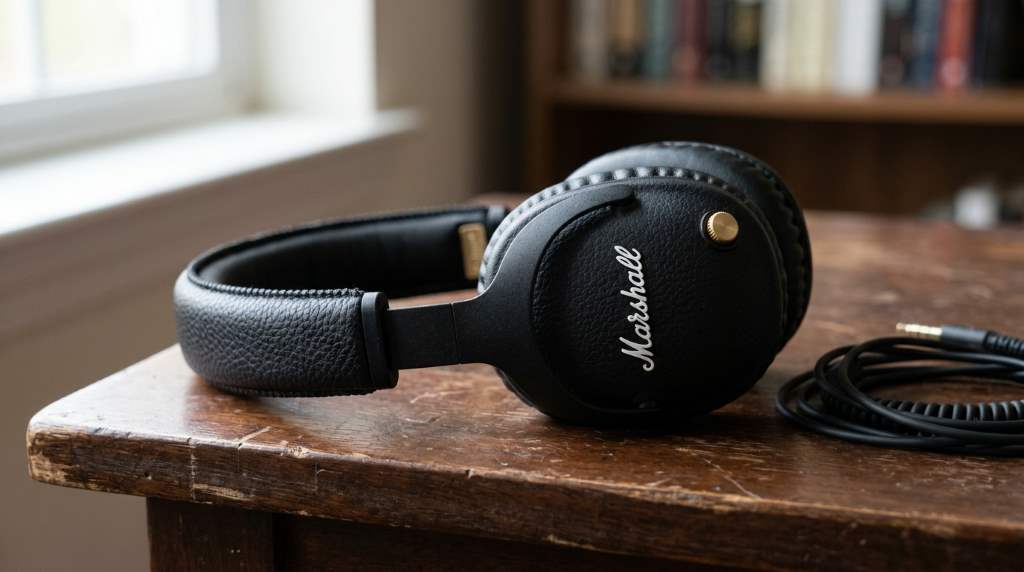
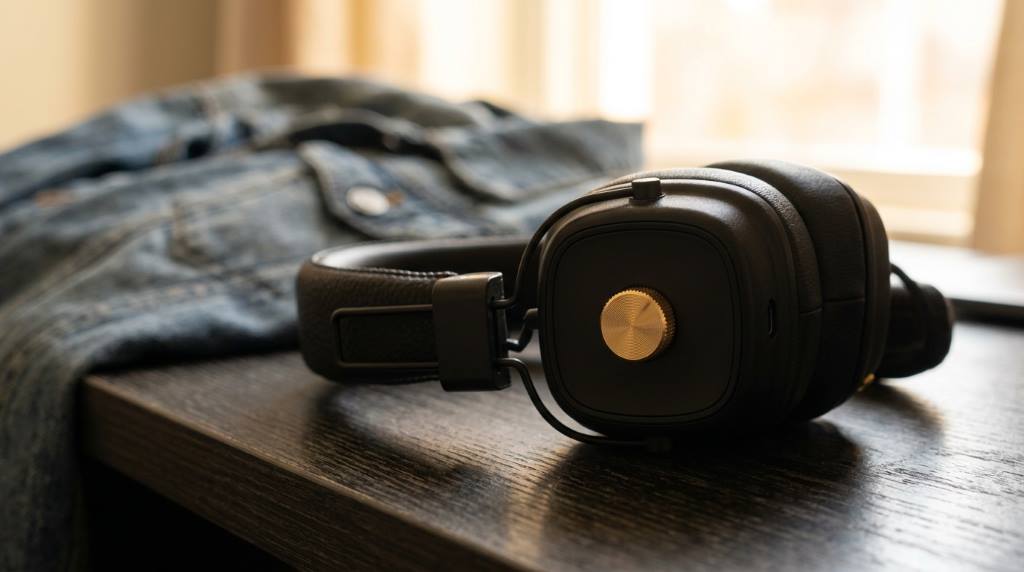
Marshall headphones are famous for their strong sound and classic design. Over 50 million users worldwide pick them for their rich audio and durability. Adjusting the audio settings on your marshall headphones can lift your listening experience to new heights. Whether you love deep bass or clear highs this guide will help you tweak every detail.
You do not need to be an expert to make your Marshall headphones sound perfect. Small changes in the equalizer or app settings can make a big difference. This article will walk you through each step so you can enjoy music the way it was meant to be heard.
Why Adjusting Audio Settings Matters
Every song has its own mix of frequencies and adjusting your headphones helps bring out the best in each track. Marshall headphones come with powerful drivers that can handle a wide range of sounds. By fine tuning the settings you can match the audio to your personal taste.
Poorly set audio can cause fatigue over time and strain your ears. Balanced settings ensure a pleasant experience even during long listening sessions. This is especially important for audiophiles who spend hours with their headphones on.
Different genres need different audio profiles. For example rock music often benefits from boosted mids and highs. On the other hand electronic tracks may need more bass to feel full and immersive.
Understanding the Marshall App
The Marshall Bluetooth app is your main tool for adjusting audio settings. It is available for both iOS and Android devices. The app connects to your headphones via Bluetooth and unlocks advanced features.
Once connected you can access the equalizer which is the heart of audio customization. The app also lets you switch between preset sound profiles. These presets are designed for specific music styles.
The app provides a user friendly interface that makes it easy to experiment with settings. You can save your favorite configurations for quick access later. This is helpful if you switch between different types of music often.
Step by Step Guide to Adjusting Audio Settings
Connect Your Headphones to the App
Start by turning on your Marshall headphones and enabling Bluetooth on your device. Open the Marshall app and wait for it to detect your headphones. Tap the name of your headphones to connect.
Make sure your headphones are fully charged before you begin. A low battery can affect performance and the connection may drop. This can interrupt your customization process.
Access the Equalizer
Once connected open the equalizer section in the app. You will see a graph with sliders for different frequency bands. These bands range from low bass to high treble.
Each slider controls the volume of a specific frequency range. Moving a slider up boosts that range while moving it down reduces it. Start with all sliders in the middle for a neutral sound.
Adjust the Bass
The lowest sliders control the bass frequencies. If you love deep thumping bass move these sliders up. Be careful not to overdo it as too much bass can muddy the sound.
For a balanced sound keep the bass sliders slightly above the middle. This adds warmth without overwhelming the other frequencies. Test with a bass heavy song to hear the difference.
Tweak the Mids
The middle sliders handle the midrange frequencies where most instruments and vocals live. Boosting the mids can make voices and guitars stand out. This is great for rock and pop music.
If the sound feels too harsh reduce the upper mids slightly. This can smooth out the audio and make it more pleasant for long listening sessions. Experiment to find the right balance.
Fine Tune the Treble
The highest sliders control the treble frequencies. These add clarity and detail to the sound. Too much treble can make the audio feel sharp and fatiguing.
Start with the treble sliders in the middle and adjust based on your preference. If you listen to a lot of classical or jazz music you might want to boost the treble slightly. This brings out the nuances in the instruments.
Save Your Custom Preset
Once you are happy with your settings save them as a custom preset. This allows you to switch back to your favorite configuration anytime. You can create multiple presets for different music styles.
Give each preset a clear name so you can remember what it is for. For example you might name one Rock and another Jazz. This makes it easy to switch between them.
Using Preset Sound Profiles
The Marshall app comes with several preset sound profiles. These are designed by audio experts for specific genres. They can be a great starting point if you are new to adjusting audio settings.
Some of the most popular presets include Bass Boost for electronic music and Vocal for podcasts and audiobooks. Try a few to see which ones you like best. You can always tweak them further.
Presets are also useful if you share your headphones with others. Each person can pick their favorite profile without having to adjust the settings every time. This makes the headphones more versatile.
Advanced Tips for Audio Customization
If you want to take your audio customization to the next level consider using third party equalizer apps. These apps often provide more bands and finer control over the sound. They can work alongside the Marshall app.
Some third party apps also offer features like surround sound simulation. This can create a more immersive listening experience especially for movies and games. However these apps may drain your battery faster.
Another advanced tip is to use a spectrum analyzer. This tool shows you the frequency content of your music in real time. You can use it to see which frequencies are dominant in your favorite songs.
With this information you can adjust your equalizer to complement the music. For example if a song lacks high frequencies you can boost the treble to add more sparkle. This can make your listening experience more enjoyable.
Common Mistakes to Avoid
One common mistake is boosting too many frequency bands at once. This can lead to a muddy and unbalanced sound. It is better to focus on a few key areas and keep the rest neutral.
Another mistake is ignoring the volume level when adjusting settings. Always test your changes at a moderate volume. High volumes can mask flaws in the sound and lead to poor adjustments.
Avoid making drastic changes all at once. Small incremental adjustments are easier to evaluate. This way you can pinpoint exactly what works and what does not.
Finally do not forget to reset your settings occasionally. Our ears can adapt to changes over time. Resetting allows you to reassess your preferences with fresh ears.
Testing Your Settings
Once you have adjusted your settings it is important to test them with a variety of music. Start with songs you know well. This will help you notice the differences more easily.
Pay attention to how the music makes you feel. Good audio settings should make the listening experience more enjoyable and immersive. If something feels off go back and tweak the settings again.
It is also a good idea to test your settings in different environments. The acoustics of a room can affect how your headphones sound. What works in a quiet room may not work as well in a noisy one.
If you use your headphones for different activities like working out or commuting create separate presets for each. This ensures you always have the best sound for the situation.
Maintaining Your Headphones for Optimal Sound
Keeping your Marshall headphones clean is essential for maintaining sound quality. Dust and earwax can build up over time and affect performance. Use a soft cloth to clean the ear cushions and a small brush for the nooks and crannies.
Store your headphones in a dry place when not in use. Extreme temperatures and humidity can damage the internal components. This can lead to a degradation in sound quality over time.
Regularly check for software updates for your headphones. Marshall often releases firmware updates that can improve performance and add new features. These updates can also fix bugs that may affect sound quality.
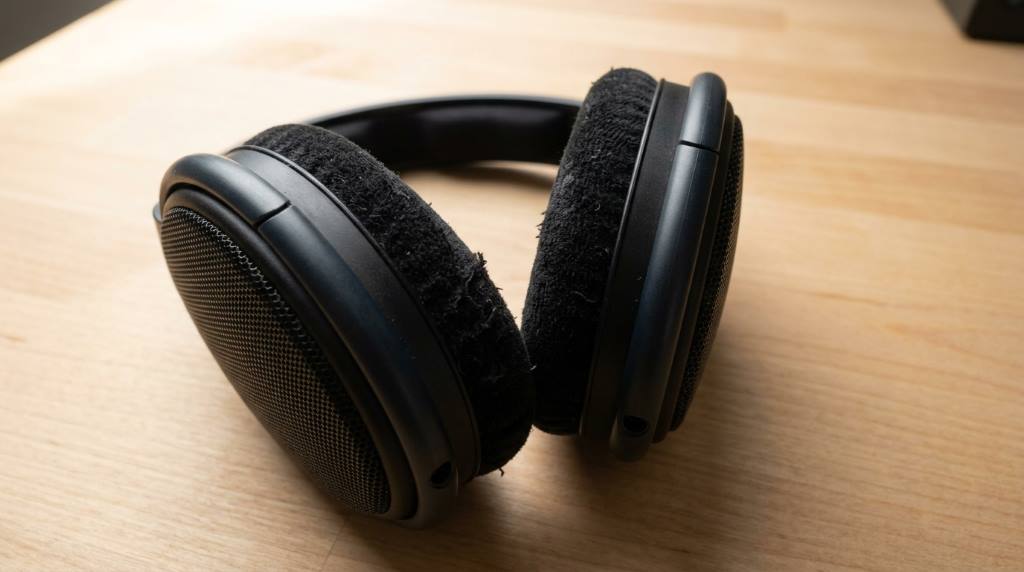
If you notice a significant drop in sound quality it may be time to replace the ear cushions. Worn out cushions can affect the seal and reduce bass response. Marshall offers replacement parts for many of their models.
Unique Discussion: The Impact of Climate on Audio Settings
Did you know that climate can affect how your headphones sound? Humidity and temperature can change the materials in your headphones. This can subtly alter the audio profile.
In humid climates the ear cushions may absorb more moisture. This can make them softer and affect the seal around your ears. A poorer seal can reduce bass response and overall sound quality.
If you live in a hot climate the materials in your headphones may expand slightly. This can change the fit and comfort. It may also affect the sound isolation and frequency response.
To combat these effects you may need to adjust your audio settings seasonally. For example in the summer you might need to boost the bass slightly to compensate for a looser seal. In the winter you might reduce the treble to account for harder materials.
Paying attention to these subtle changes can help you maintain the best sound year round. It is a small detail that most people overlook but it can make a big difference in your listening experience.
Conclusion
Adjusting the audio settings on your Marshall headphones is a simple but powerful way to enhance your listening experience. By understanding the equalizer and experimenting with different settings you can tailor the sound to your personal taste.
Remember to start with small changes and test them with a variety of music. Do not be afraid to try new things and save your favorite configurations. With a little practice you will be able to get the most out of your headphones.
Take the time to explore all the features of the Marshall app. The presets and custom equalizer settings offer endless possibilities. Your perfect sound is just a few adjustments away.
Start tweaking your settings today and discover a new level of audio enjoyment. Your ears will thank you.
FAQ
How do I reset the audio settings on my Marshall headphones?
Open the Marshall app and look for the reset option in the settings menu.
Can I use the Marshall app with wired headphones?
The Marshall app is designed for Bluetooth headphones and does not work with wired models.
What is the best equalizer setting for bass heavy music?
Boost the lowest frequency sliders and slightly reduce the mids for a powerful bass experience.
How often should I update my headphones firmware?
Check for updates every few months to ensure optimal performance and new features.
Can I share my custom presets with friends?
Currently the Marshall app does not support sharing presets directly but you can manually note your settings.