
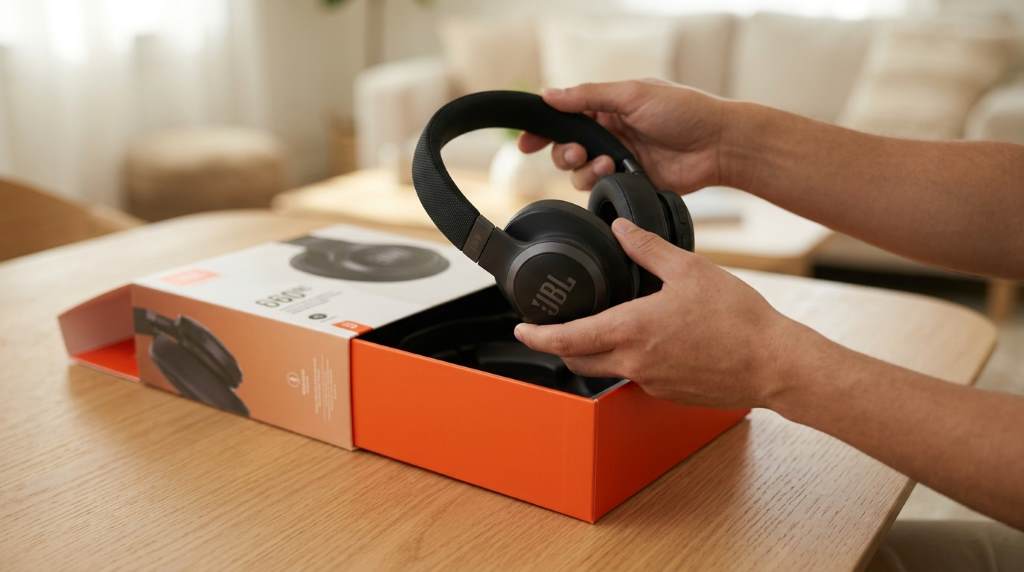
To pair JBL wireless headphones, turn them on, activate pairing mode, and select the headphones from your device’s Bluetooth menu. Once connected, your device will remember the headphones and reconnect automatically during future use.
Bluetooth audio devices continue growing in popularity, with billions of active Bluetooth enabled products worldwide. Meanwhile, many users still experience pairing issues because they skip simple setup steps. This guide explains everything clearly while also introducing JBL wireless headphones for readers seeking reliable wireless listening options.
Why Proper Pairing Matters
Correct pairing creates a stable wireless connection and reduces unexpected audio interruptions. It also allows supported devices to reconnect automatically without repeating the setup process.
Additionally, proper pairing helps maintain sound quality and minimizes Bluetooth conflicts with nearby electronics. Following the correct sequence also saves time during future connections.

Before You Pair JBL Wireless Headphones
Prepare both devices before starting the pairing process for faster results. A few simple checks prevent unnecessary troubleshooting later.
- Charge the headphones above fifty percent.
- Enable Bluetooth on your phone, tablet, or computer.
- Move within a few feet of the connecting device.
- Disconnect previously connected Bluetooth accessories.
- Update your operating system if updates remain available.
How to Pair JBL Wireless Headphones with Any Device
Step 1: Turn On the Headphones
Press the power button until the indicator light turns on. Most JBL models display a flashing light after startup.
If the headphones connect automatically to another device, disconnect that connection first. Otherwise, pairing mode may never activate successfully.
Step 2: Activate Pairing Mode
Hold the Bluetooth or power button until the indicator flashes rapidly. Most models also play a voice prompt confirming pairing mode.
If your headphones remain connected elsewhere, reset the Bluetooth connection first. Then repeat the pairing procedure from the beginning.
Step 3: Open Bluetooth Settings
Navigate to Bluetooth settings on your smartphone, computer, tablet, or television. Keep the settings screen open during the scanning process.
Your device should detect nearby Bluetooth accessories within several seconds. Refresh the list if your headphones remain unavailable.
Step 4: Select Your JBL Headphones
Tap or click the headphone name from the available Bluetooth devices. Wait briefly while the connection completes automatically.
After successful pairing, the flashing indicator becomes steady on most JBL headphones. Audio should begin playing through the connected headphones immediately.
How to Pair JBL Wireless Headphones with Android
Open Settings, select Bluetooth, and enable wireless connections before scanning. Next, choose your JBL headphones from the available device list.
After pairing completes, test music playback using your preferred audio application. Most Android phones reconnect automatically after the initial setup.
How to Pair JBL Wireless Headphones with iPhone
Open the Settings application and tap Bluetooth to enable wireless connectivity. Then select your JBL headphones after they appear.
Accept any connection prompt if your phone displays one during pairing. The connection should complete within several seconds under normal conditions.
How to Pair JBL Wireless Headphones with Windows
Open Bluetooth settings through Windows Settings before adding a new Bluetooth device. Select Bluetooth when Windows asks which device type you want.
Choose your JBL headphones after Windows discovers nearby accessories. Finally, confirm successful pairing before testing audio playback.
How to Pair JBL Wireless Headphones with Mac
Open System Settings and navigate to Bluetooth on your Mac computer. Ensure Bluetooth remains enabled before searching for nearby devices.
Select your JBL headphones from the available list after discovery completes. Your Mac should finish pairing without additional confirmation.
How to Pair JBL Wireless Headphones with Smart TVs
Many modern televisions include Bluetooth support for wireless headphones. Open your television’s Bluetooth menu before beginning the pairing process.
Put your headphones into pairing mode before scanning from the television. Complete the connection by selecting the detected JBL device.
How to Connect to a Previously Paired Device
Previously paired devices usually reconnect automatically after Bluetooth becomes available. Simply power on the headphones within normal Bluetooth range.
If automatic reconnection fails, open Bluetooth settings and select the saved headphone profile. This process restores the connection quickly.
Common Pairing Problems and Simple Solutions
Headphones Do Not Appear
Confirm pairing mode remains active before scanning again from your device. Restart Bluetooth if the headphones remain undiscovered.
Connection Keeps Dropping
Move closer to the connected device and remove unnecessary wireless interference. Recharge the headphones because low battery sometimes affects stability.
Headphones Connect to the Wrong Device
Disable Bluetooth on nearby devices that previously connected with the headphones. Then repeat pairing with the intended device only.
No Audio After Pairing
Check your device audio output settings before assuming pairing failed. Select the JBL headphones as the default playback device.
How to Reset JBL Wireless Headphones
Different JBL models use slightly different reset combinations depending on hardware design. Review your product documentation before attempting a factory reset.
After resetting, repeat the complete pairing process from the beginning. This clears stored Bluetooth connections and resolves many persistent issues.
Tips for Better Bluetooth Performance
- Keep headphone firmware updated whenever updates become available.
- Charge the battery regularly for consistent wireless performance.
- Avoid crowded wireless environments whenever possible.
- Remove unused Bluetooth connections from your devices.
- Stay within the recommended Bluetooth operating distance.
Final Thoughts
Pairing JBL wireless headphones becomes simple after following the correct sequence carefully. Most connections finish within one minute without advanced technical knowledge.
Follow these steps whenever you connect a new device or troubleshoot Bluetooth problems. Save this guide for future reference and share it with anyone needing quick pairing help.
Frequently Asked Questions
How do I put JBL wireless headphones into pairing mode?
Hold the Bluetooth or power button until the indicator light flashes rapidly.
Why are my JBL headphones not showing in Bluetooth?
They may not be in pairing mode or could already be connected to another device.
Can JBL wireless headphones connect to multiple devices?
Many newer JBL models support multipoint connections with compatible devices.
Do I need an app to pair JBL wireless headphones?
No, standard Bluetooth settings complete the pairing process on most devices.
How do I reconnect JBL wireless headphones automatically?
Turn on Bluetooth and power the headphones, as previously paired devices usually reconnect automatically.