


If you’ve recently purchased a PlayStation 5 and tried connecting your favorite Bluetooth headphones, you may have encountered an unexpected roadblock. Despite being a cutting-edge gaming console packed with advanced technology, the PS5 doesn’t support standard Bluetooth headphones in the way you might expect. This limitation has frustrated many users, but the good news is that there are several effective workarounds available.
In this comprehensive guide, we’ll explore everything you need to know about connecting wireless headphones to your PS5, including official methods, alternative solutions, and expert recommendations to enhance your gaming audio experience.
Understanding PS5’s Bluetooth Limitations
The PlayStation 5 does have Bluetooth capability built into the console, but Sony has intentionally restricted its use for standard audio devices. The console uses Bluetooth connectivity exclusively for the DualSense controller and other official PlayStation accessories. This design decision might seem puzzling for such an advanced gaming system, but there are technical reasons behind it.
Sony’s primary concern is maintaining optimal gaming performance. The PS5 already dedicates a significant portion of its Bluetooth bandwidth to the DualSense controller’s advanced features, including haptic feedback and adaptive triggers. Adding standard Bluetooth audio connections could introduce latency issues, creating a frustrating delay between on-screen action and audio that would negatively impact gameplay, particularly in competitive or fast-paced games.
Additionally, bandwidth interference between multiple Bluetooth devices could affect controller responsiveness, which is crucial for gaming. By limiting Bluetooth audio to specialized gaming headsets that use proprietary 2.4GHz wireless connections, Sony ensures minimal latency and maximum performance.
Official Methods to Connect Wireless Headphones to PS5
PlayStation-Compatible Wireless Headsets
The most straightforward solution is to use officially supported PlayStation wireless headsets. These headsets work seamlessly with the PS5 and don’t require any complicated setup procedures.
Sony’s Official Headsets:
- Pulse 3D Wireless Headset – Designed specifically for the PS5’s Tempest 3D AudioTech, this headset provides an immersive spatial audio experience that complements the console’s capabilities perfectly.
- PlayStation Gold and Platinum Headsets – Previous generation wireless headsets that remain compatible with PS5 and offer excellent audio quality.
These headsets use USB dongles that communicate via 2.4GHz wireless technology rather than standard Bluetooth. This proprietary connection provides lower latency and better audio quality specifically optimized for gaming. Simply plug the USB dongle into your PS5’s USB port, turn on the headset, and you’re ready to game.
Third-Party Gaming Headsets with USB Dongles
Many third-party manufacturers produce gaming headsets compatible with PS5 using similar 2.4GHz wireless technology. Premium options include the Audeze Maxwell Wireless, SteelSeries Arctis series, and the Nacon RIG 900 Max HS. These headsets typically offer features like:
- Low-latency wireless connectivity specifically designed for gaming
- Superior audio quality with customizable EQ settings
- Long battery life (often 15-20+ hours)
- Built-in microphones with noise cancellation
- Multi-platform compatibility (works with PC, Nintendo Switch, and other consoles)
Alternative Connection Methods for Standard Bluetooth Headphones
Using Bluetooth USB Adapters
If you already own high-quality Bluetooth headphones and want to use them with your PS5, a Bluetooth USB adapter is your most practical solution. These small devices plug into your console’s USB port and create a bridge between your PS5 and standard Bluetooth headphones.
How to Set Up a Bluetooth Adapter:
- Purchase a compatible Bluetooth transmitter adapter (ensure it supports PS5 and has aptX Low Latency for reduced audio delay)
- Plug the adapter into a USB-A or USB-C port on your PS5 (front or rear panel)
- Put your Bluetooth headphones into pairing mode
- Press the pairing button on the adapter to establish the connection
- Navigate to PS5 Settings > Sound > Audio Output and select the USB device
When selecting an adapter, look for models that specifically mention PS5 compatibility and support low-latency audio codecs like aptX LL or aptX Adaptive. These codecs minimize the delay between video and audio, providing a smoother gaming experience. Popular adapter brands include Avantree, Creative BT-W4, and EPOS GSX 300.
Important Note: While adapters enable audio playback through Bluetooth headphones, microphone functionality may be limited or unavailable depending on the adapter model. Check product specifications carefully if voice chat is important to you.
Wired Connection via DualSense Controller
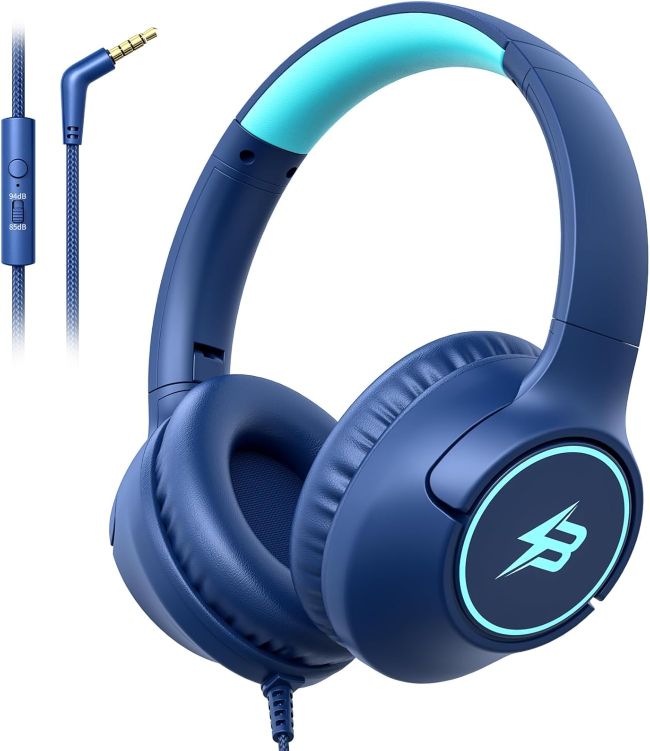
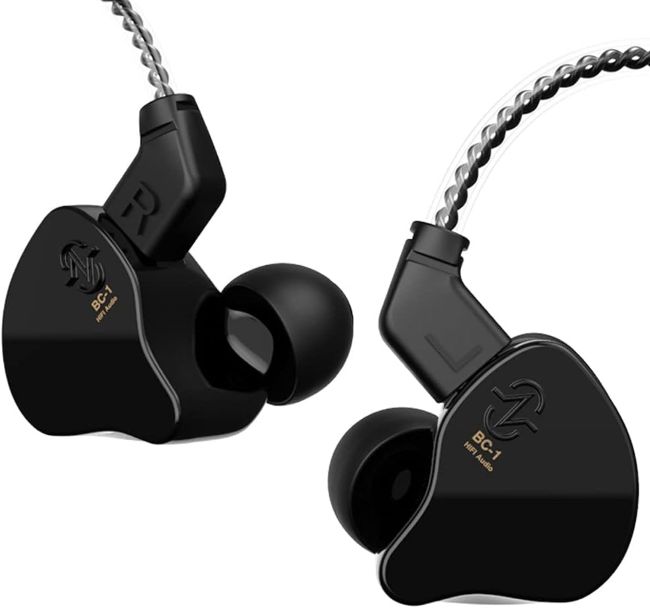
For a simple, zero-latency solution, you can connect wired headphones directly to your DualSense controller. The controller features a 3.5mm headphone jack at the bottom that supports any standard wired headphones or earbuds.
Setup Process:
- Plug your headphones into the 3.5mm jack on your DualSense controller
- Press the PlayStation button on your controller
- Navigate to Sound > Output Device and select “Controller (DualSense Wireless Controller)”
- Adjust volume using the controller’s built-in volume controls
This method provides excellent audio quality with zero latency, making it ideal for competitive gaming. However, it does tether you to the controller with a cable, which some users may find restrictive.
If you have Bluetooth headphones with a detachable cable, many come with a 3.5mm audio cable option that allows you to use them in wired mode. Alternatively, some USB-C to 3.5mm adapters work with certain headphones, though compatibility varies.
TV or Monitor Bluetooth Passthrough
If your television or gaming monitor has built-in Bluetooth capability, you can pair your headphones directly with your display. This method works well for single-player experiences but has some limitations.
Considerations for TV Bluetooth:
- Audio Lag: TV Bluetooth processing can introduce noticeable latency, creating a delay between on-screen action and audio
- Best Use Cases: Ideal for story-driven games, RPGs, or casual gaming where split-second audio sync isn’t critical
- Not Recommended For: Competitive shooters, rhythm games, or any title where audio timing is essential
To use this method, simply access your TV’s Bluetooth settings through its menu system and pair your headphones as you would with any Bluetooth device. The audio from your PS5 will automatically route through your TV to your connected headphones.
Troubleshooting Common Connection Issues
Even with the right equipment, you may encounter occasional problems. Here are solutions to the most common issues:
Connection Drops or Instability
- Ensure your adapter or headset firmware is updated to the latest version
- Minimize physical obstructions between the adapter and headphones
- Move other wireless devices (routers, smartphones) away from your PS5 to reduce interference
- Try different USB ports on your console if using an adapter
Audio Lag or Latency Problems
- Invest in adapters that support aptX Low Latency or aptX Adaptive codecs
- Ensure your headphones also support these low-latency codecs
- Switch from TV Bluetooth to a direct USB adapter for better synchronization
- Consider wired connections for games where audio timing is critical
Microphone Not Working
- Check if your Bluetooth adapter supports bidirectional audio (many only support audio output)
- Verify microphone settings in PS5 audio options (Settings > Sound > Microphone)
- Consider using the DualSense controller’s built-in microphone for voice chat
- Use officially supported gaming headsets for full microphone functionality
Volume Control Issues
- Adjust volume both on your headphones and in PS5 system settings
- Navigate to Settings > Sound > Volume > Headphones to fine-tune audio levels
- Some adapters have independent volume controls that may need adjustment
- Ensure “Chat Audio” and “Game Audio” balance is set correctly for multiplayer games
Recommended Headphones and Accessories for PS5

Best Official Gaming Headsets
| Headset | Price Range | Key Features |
|---|---|---|
| Sony Pulse 3D Wireless | $99-$129 | Optimized for PS5 3D audio, excellent comfort, dual microphones |
| Audeze Maxwell Wireless | $299-$329 | Premium planar magnetic drivers, 80+ hour battery, multi-platform |
| SteelSeries Arctis Nova 7P | $179-$199 | Comfortable design, great sound quality, 38-hour battery life |
| Nacon RIG 900 Max HS | $249 | Dual connectivity (Bluetooth + 2.4GHz), app customization, flip-to-mute mic |
Budget-Friendly Alternatives
For gamers on a budget, consider these options:
- Wired Gaming Headsets ($30-$60): Brands like HyperX Cloud Stinger or Razer Kraken offer excellent value with zero latency when connected to the DualSense controller
- Quality Bluetooth Adapters ($25-$50): Avantree DG80 or Creative BT-W4 allow you to use existing Bluetooth headphones effectively
- Refurbished Official Headsets: Sony’s Gold or Platinum headsets can often be found refurbished at significant discounts
The Future of PS5 Bluetooth Support
While Sony has not announced plans to add native Bluetooth audio support for standard headphones through a future firmware update, the company has demonstrated willingness to expand audio options based on user feedback. The introduction of various officially licensed third-party wireless headsets shows Sony’s commitment to providing diverse audio solutions.
Gaming headset manufacturers continue to develop innovative products with improved connectivity options, including models that support both Bluetooth and proprietary 2.4GHz connections simultaneously. These dual-mode headsets offer the best of both worlds: low-latency gaming performance on PS5 and convenient Bluetooth connectivity for mobile devices and other uses.
Final Recommendations
The best audio solution for your PS5 depends on your specific needs, budget, and gaming preferences:
- For Optimal Gaming Experience: Invest in an officially supported gaming headset with a USB dongle like the Pulse 3D or Audeze Maxwell. These provide the lowest latency and best integration with PS5 features.
- For Using Existing Bluetooth Headphones: Purchase a quality Bluetooth USB adapter that supports low-latency codecs. This allows you to leverage headphones you already own while maintaining acceptable audio performance.
- For Budget-Conscious Gamers: A wired headset connected to your DualSense controller offers zero latency and excellent value without additional purchases beyond the headphones themselves.
- For Competitive Gaming: Avoid TV Bluetooth passthrough and prioritize wired connections or official wireless gaming headsets to eliminate any audio delay that could impact your performance.
While the PS5’s lack of native Bluetooth audio support may initially seem like a limitation, understanding Sony’s reasoning and the available alternatives ensures you can create an excellent audio setup that meets your gaming needs. Whether you choose official accessories, third-party adapters, or wired solutions, you can enjoy immersive, high-quality audio that enhances your PlayStation 5 gaming experience.
For more detailed technical specifications and official product support, visit PlayStation’s official support page.
Related Topic: On-ear vs Over-ear Headphones for Eyeglass Wearers
Frequently Asked Questions (FAQs)
Can I use AirPods with PS5?
AirPods and other standard Bluetooth headphones cannot connect directly to PS5 without a Bluetooth USB adapter. The PS5 does not natively support Apple AirPods or most consumer Bluetooth headphones. To use AirPods, you’ll need to purchase a compatible Bluetooth transmitter adapter that plugs into your PS5’s USB port. However, keep in mind that microphone functionality will likely not work even with an adapter.
Why doesn’t PS5 support Bluetooth headphones natively?
Sony restricts Bluetooth audio to prevent bandwidth interference and audio latency issues. The PS5 already uses Bluetooth extensively for the DualSense controller’s advanced features like haptic feedback and adaptive triggers. Adding standard Bluetooth headphones could cause delays between on-screen action and audio, negatively impacting gameplay. Sony prioritizes gaming performance over convenience for standard Bluetooth devices.
Do wireless gaming headsets work better than Bluetooth adapters?
Yes, official wireless gaming headsets typically provide superior performance compared to Bluetooth adapters. They use proprietary 2.4GHz wireless technology specifically optimized for gaming, offering lower latency (often under 20ms), better audio quality, and full microphone support. Bluetooth adapters work adequately for casual gaming but may introduce noticeable latency even with low-latency codecs.
Can I use my headphones’ microphone for PS5 party chat?
Microphone functionality depends on your connection method. Official wireless gaming headsets fully support microphones for party chat and in-game communication. When using Bluetooth adapters with standard headphones, microphone support is limited or non-existent with most adapters, as they typically only transmit audio output. For reliable voice chat with Bluetooth headphones, you may need to use the DualSense controller’s built-in microphone or invest in an adapter specifically designed for bidirectional audio.
What’s the best budget option for wireless audio on PS5?
The most budget-friendly approach is using wired headphones connected directly to your DualSense controller’s 3.5mm jack, which provides zero latency at no additional cost beyond the headphones. If you prefer wireless, a quality Bluetooth USB adapter ($25-$50) allows you to use existing Bluetooth headphones you may already own. For dedicated gaming, budget wireless gaming headsets like the HyperX Cloud Flight or refurbished Sony Gold headsets ($60-$80) offer better value than premium options while maintaining good performance.
Will future PS5 updates add native Bluetooth support?
Sony has not announced any plans to add native Bluetooth audio support for standard consumer headphones in future firmware updates. The company’s focus remains on maintaining optimal gaming performance and supporting specialized gaming headsets. While user feedback could potentially influence future decisions, there’s currently no indication that native Bluetooth headphone support will be added to the PS5 system software.
Can I connect multiple wireless headsets to one PS5?
No, the PS5 does not support simultaneous audio output to multiple wireless headsets. The console can only output audio to one device at a time, whether it’s a wireless gaming headset, Bluetooth adapter, or the DualSense controller. If you want multiple people to listen wirelessly, you would need to use your TV’s audio system or consider audio splitters with wired headphones connected to a controller.
Does using a Bluetooth adapter drain my PS5’s performance?
No, using a USB Bluetooth adapter does not impact your PS5’s gaming performance. The adapter operates independently and doesn’t consume significant system resources. However, ensure you’re using a quality adapter to avoid audio quality issues or connection instability. The PS5’s powerful hardware easily handles the minimal processing required for USB audio devices without affecting frame rates or graphical performance.