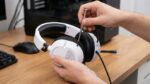


Fix iClever Kids Bluetooth Headphones by resetting the headset, charging it fully, clearing old Bluetooth pairings, and reconnecting it correctly. Most common problems disappear after a factory reset, careful charging port cleaning, or checking the volume limit settings.
Millions of Bluetooth headphones stay active inside homes every day, while connected devices continue growing across families. Likewise, battery related issues cause many wireless audio complaints, making early troubleshooting especially valuable. If you own iClever kids Bluetooth headphones, this guide walks through practical fixes without confusing technical jargon.
Start With The Fastest Checks
Always begin with simple checks before trying advanced troubleshooting. These quick steps often solve connection or sound problems within minutes.
- Charge the headphones for at least thirty minutes.
- Turn Bluetooth off and back on.
- Move closer to the connected device.
- Remove nearby wireless interference.
- Test with another phone or tablet.
If everything still fails, continue through each troubleshooting section carefully. Following the order prevents unnecessary resets or repeated pairing attempts.
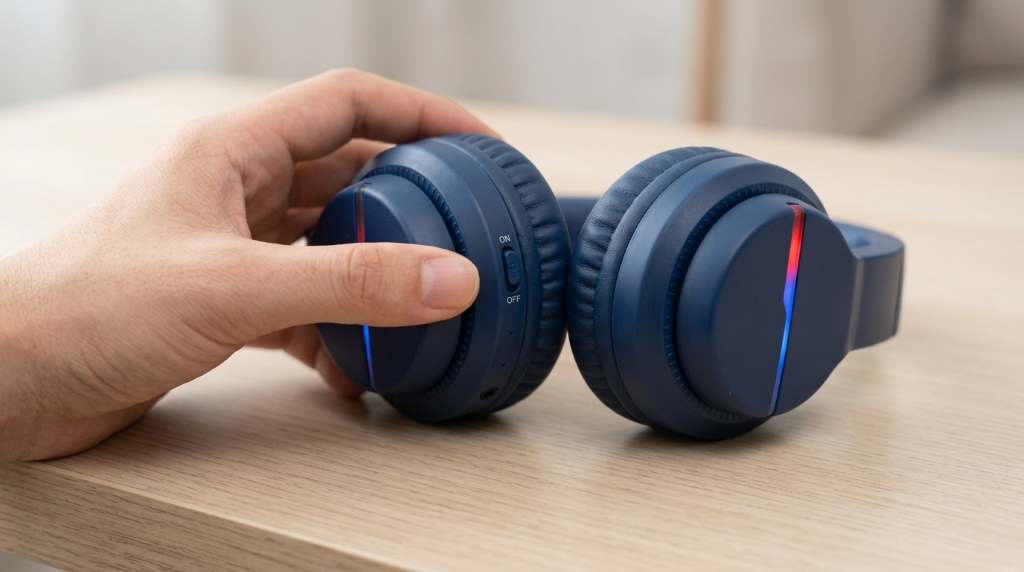
Why iClever Kids Bluetooth Headphones Stop Working
Several small issues can create frustrating symptoms during everyday use. Fortunately, each problem usually has a straightforward solution.
Common causes include drained batteries, corrupted Bluetooth memory, charging problems, blocked speakers, damaged cables, and incorrect volume settings. Additionally, software glitches sometimes interrupt pairing after switching between multiple devices.
ProblemLikely CauseQuick FixWill not turn onLow batteryCharge completelyWill not pairSaved Bluetooth conflictReset pairingNo soundVolume settingIncrease volume safelyOnly one side worksDebris or hardware issueClean speaker carefullyCharging failsDirty portClean charging port
How To Reset iClever Kids Bluetooth Headphones
A reset clears temporary software errors that prevent normal operation. Therefore, this remains one of the most effective troubleshooting methods.
Soft Reset
Turn the headphones completely off before waiting ten seconds. Next, press the power button until the indicator light responds normally.
Reconnect the headphones after restarting both devices. This simple refresh often fixes frozen controls and minor connection failures.
Factory Reset
A factory reset removes stored Bluetooth pairings from the headphones. Use this option whenever repeated pairing attempts continue failing.
- Turn the headphones off.
- Press and hold the power button.
- Wait until the LED flashes rapidly.
- Release the button.
- Pair the headphones again.
Different models may use slightly different button combinations. However, the flashing LED usually confirms successful reset mode.
How To Fix Bluetooth Pairing Problems
Pairing failures happen after switching between several phones, tablets, or laptops. Fortunately, clearing old connections usually restores normal behavior.
Forget Previous Devices
Open the Bluetooth settings on your device before removing the saved headphone connection. Then restart Bluetooth before searching again.
This prevents outdated connection records from creating repeated pairing failures. Fresh pairing creates a cleaner wireless connection.
Pair In Discovery Mode
Hold the power button until the LED blinks quickly. Your phone should now detect the headphones as available.
Select the headphones once instead of tapping repeatedly. Waiting patiently avoids interrupted pairing attempts.
Try Another Device
Testing another phone helps isolate the real problem. If pairing succeeds elsewhere, your original device likely needs Bluetooth refreshing.
How To Fix Headphones That Will Not Turn On
Power issues usually relate to charging rather than permanent hardware failure. Therefore, inspect every charging step carefully.
Charge Correctly
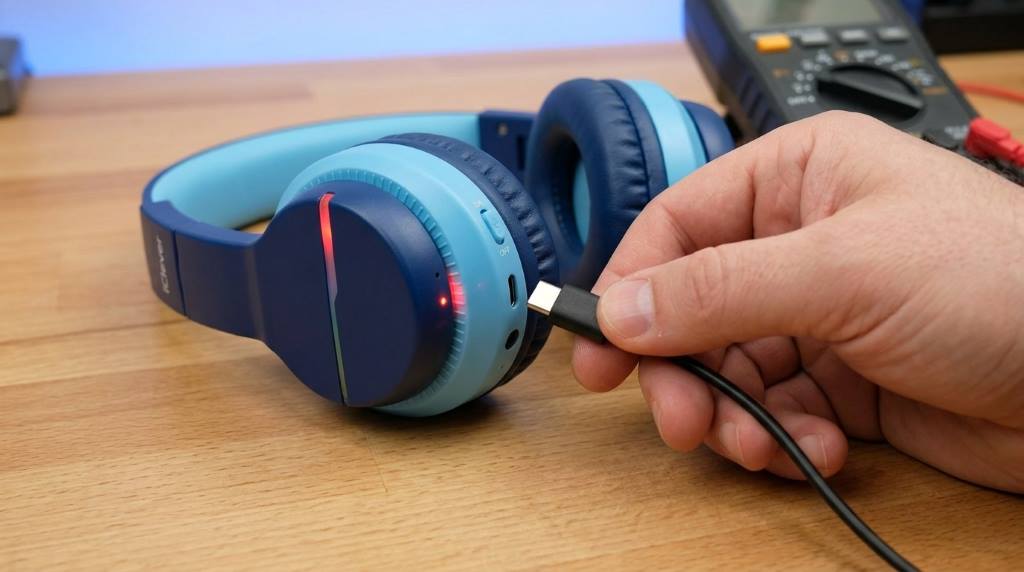
Use a working USB cable before connecting a reliable power adapter. Allow enough time before testing again.
A completely drained battery sometimes needs extra charging before powering normally. Avoid assuming failure too quickly.
Inspect The Charging Cable
Try another compatible charging cable whenever possible. Damaged cables often prevent proper charging without obvious visible wear.
Check both cable ends for bent connectors. Clean connections improve charging reliability.
Check The Charging Port
Dust often collects inside small charging ports over time. Remove visible debris gently with a dry wooden toothpick.
Never use metal objects because they may damage internal contacts. Gentle cleaning works much more safely.
How To Fix No Sound Or Low Volume
Sound problems rarely require replacing the headphones immediately. Instead, check every audio setting first.
Increase Device Volume
Raise volume on both the headphones and the connected device. Some phones keep separate Bluetooth volume controls.
Adjust both controls gradually before testing audio again. This prevents mistaken assumptions about speaker failure.
Check The Volume Limit Feature
Many iClever kids headphones include safe listening volume limits. This protects hearing while reducing maximum loudness.
Parents sometimes mistake this safety feature for a sound problem. Confirm expected volume before troubleshooting further.
Test Different Audio
Play another song or video before judging speaker quality. Occasionally, one application creates temporary playback issues.
How To Fix One Side Not Working
Hearing sound from only one ear can seem alarming initially. Fortunately, several practical checks help identify the cause.
- Test another device.
- Reconnect Bluetooth.
- Clean both speaker openings.
- Inspect the ear cushions.
- Try wired mode if available.
If one side consistently stays silent everywhere, internal hardware damage becomes more likely. Continued careful testing confirms the diagnosis.
How To Fix Microphone Problems
The built in microphone supports calls, classes, and online learning. Therefore, microphone problems deserve careful troubleshooting.
Check application microphone permissions before testing another recording app. Also remove anything covering the microphone opening.
Restart the connected device after changing permissions. Fresh system loading often restores microphone access.
How To Reduce Bluetooth Connection Drops
Connection drops often happen because of wireless interference nearby. Fortunately, several habits improve stability immediately.
- Stay within normal Bluetooth range.
- Keep obstacles minimal.
- Disconnect unused Bluetooth devices.
- Restart both devices occasionally.
Microwaves and crowded wireless environments sometimes weaken Bluetooth performance temporarily. Testing another room helps identify interference.
How To Use Wired Mode If Your Model Supports It
Some iClever models include a wired listening option for extra flexibility. Wired mode helps confirm whether Bluetooth causes the issue.
Connect the audio cable securely before testing music playback. If wired audio works normally, Bluetooth troubleshooting deserves closer attention.
How To Keep iClever Kids Bluetooth Headphones Working Longer
Regular care reduces unexpected problems and extends daily reliability. Small maintenance habits create noticeable long term benefits.
- Store headphones inside a protective case.
- Keep them away from moisture.
- Avoid twisting the headband excessively.
- Clean ear cushions regularly.
- Recharge before complete battery depletion frequently.
Replacing worn ear cushions also improves comfort and sound quality. Gentle handling protects hinges and moving parts.
When Replacement Makes More Sense
Some problems indicate damage beyond ordinary troubleshooting. Recognizing those signs prevents unnecessary frustration.
Replace the headphones if the battery never holds a charge, the headband breaks completely, or charging permanently fails. Severe speaker damage also justifies replacement instead of repeated repair attempts.
My Practical Troubleshooting Routine
I always start with charging because low batteries create surprisingly misleading symptoms. Next, I clear Bluetooth pairings before attempting another clean connection.
If pairing still fails, I perform a factory reset before testing another device. Finally, I inspect the charging port because hidden lint often explains stubborn charging problems.
Conclusion
Most iClever Kids Bluetooth Headphones problems disappear after proper charging, careful resetting, or fresh Bluetooth pairing. Working through each step patiently helps identify the real cause instead of guessing.
Save this guide for future troubleshooting and share it with other parents facing similar headphone problems. A systematic approach usually restores normal performance much faster.
FAQs
Why will my iClever Kids Bluetooth Headphones not turn on?
Charge them fully before checking the cable and cleaning the charging port.
How do I reset iClever Kids Bluetooth Headphones?
Hold the power button until the LED flashes rapidly, then pair them again.
Why does only one side play sound?
Clean both speakers before testing another device to rule out connection problems.
Can I use these headphones without Bluetooth?
Some models support wired listening through a compatible audio cable.
How do I stop Bluetooth from disconnecting?
Stay within range while reducing interference and reconnecting after restarting both devices.