


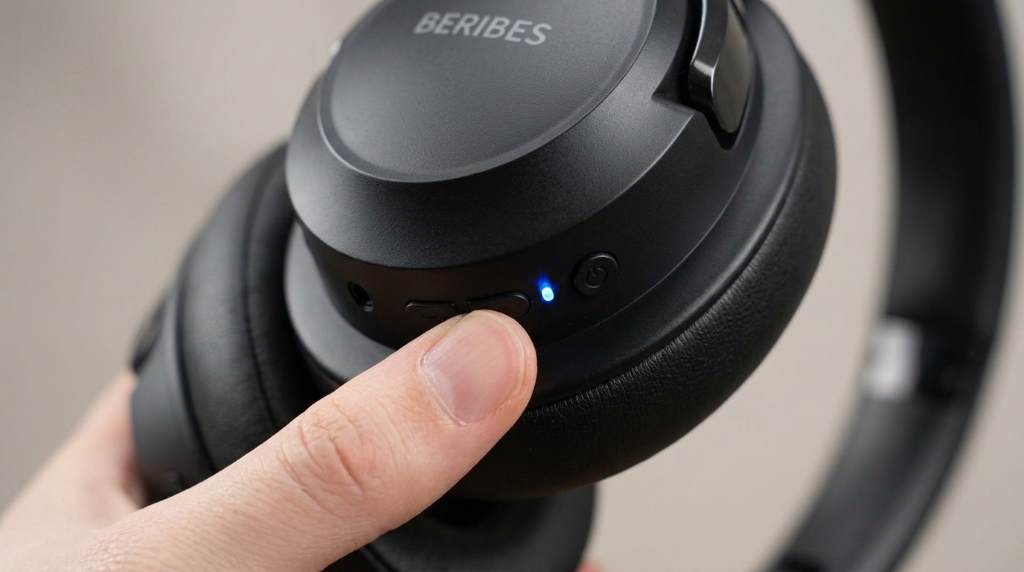
To pair Beribes over ear Bluetooth headphones, turn the headphones on and activate pairing mode until the indicator light flashes. Next, open your device Bluetooth settings, select the headphone name, and confirm the connection. Most users complete the process within a minute when the headphones enter pairing mode correctly.
Wireless headphone usage continues growing across homes, offices, and travel environments. Recent industry reports show Bluetooth audio devices remain among the most purchased consumer electronics categories. Many users own Beribes over-ear Bluetooth headphones because they offer convenience, comfort, and reliable wireless listening. However, pairing issues often create frustration during initial setup. This guide explains every important step, covers common troubleshooting scenarios, and answers questions competitors frequently overlook.
Understanding How Beribes Bluetooth Pairing Works
Bluetooth pairing creates a secure wireless connection between your headphones and another device. Once paired, the devices remember each other for future connections.
Most Beribes models support automatic reconnection after the first successful setup. Therefore, daily use becomes much faster and easier.
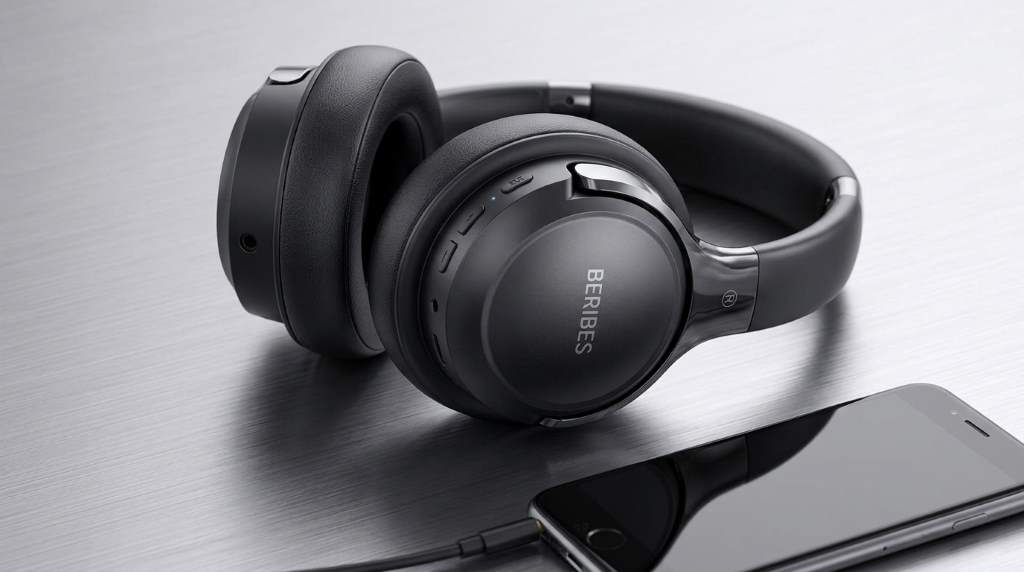
How to Put Beribes Over-Ear Bluetooth Headphones Into Pairing Mode
Pairing mode is the most important part of the process. Without it, nearby devices cannot discover your headphones.
Press and hold the power button for several seconds. Then wait until the LED indicator flashes rapidly in alternating colors.
Signs That Pairing Mode Is Active
- Rapid flashing indicator light
- Audible pairing prompt from the headphones
- Headphone name appears in Bluetooth device lists
- Connection status changes from disconnected to discoverable
If the indicator remains solid, pairing mode may not be active. In that case, restart the process and try again.
How to Pair Beribes Headphones With an iPhone
Apple devices typically complete Bluetooth pairing quickly. Nevertheless, following the correct sequence prevents connection errors.
- Turn on the headphones.
- Activate pairing mode.
- Open Settings on your iPhone.
- Select Bluetooth.
- Enable Bluetooth if necessary.
- Tap the Beribes headphone name.
- Wait for the Connected status.
After the first connection, your iPhone should reconnect automatically. As a result, future listening sessions require minimal effort.
How to Pair Beribes Headphones With an Android Phone
Android devices follow a similar process. However, menu names sometimes differ across manufacturers.
- Power on the headphones.
- Enable pairing mode.
- Open Bluetooth settings.
- Tap Pair New Device.
- Select the Beribes device name.
- Approve any pairing requests.
Once connected, audio should route through the headphones automatically. Additionally, call audio typically transfers as well.
How to Pair Beribes Headphones With a Windows PC
Many people use wireless headphones for work, gaming, and video meetings. Therefore, Windows compatibility remains important.
- Turn on pairing mode.
- Open Windows Settings.
- Select Bluetooth & Devices.
- Click Add Device.
- Choose Bluetooth.
- Select the headphone name.
- Complete the pairing process.
If audio does not switch automatically, select the headphones as the default audio output device.
How to Pair Beribes Headphones With a Mac
Mac computers support Bluetooth audio connections through system settings. The process usually takes less than a minute.
- Enable headphone pairing mode.
- Open System Settings.
- Select Bluetooth.
- Locate the Beribes device.
- Click Connect.
After successful pairing, media playback should move directly to the headphones.
Common Pairing Problems and Their Solutions
Many competing guides stop after the initial setup steps. However, real users often encounter connection issues that require additional troubleshooting.
Headphones Not Appearing in Bluetooth List
First, confirm pairing mode remains active. Next, move the headphones closer to the device.
If the issue continues, restart both devices. Then repeat the pairing procedure from the beginning.
Connection Fails Repeatedly
Previously saved Bluetooth profiles sometimes cause conflicts. Therefore, remove the headphone entry and pair again.
Device software updates may also improve compatibility. Consequently, keeping systems updated helps prevent recurring issues.
Audio Connected but No Sound
Check the volume level on both devices. Additionally, verify the headphones are selected as the active output source.
Many users accidentally connect successfully while audio remains assigned elsewhere. A quick settings check usually resolves the problem.
Headphones Connect to the Wrong Device
Modern Bluetooth devices often remember multiple connections. As a result, the headphones may reconnect unexpectedly.
Disable Bluetooth on nearby devices temporarily. Then reconnect to the preferred device.
How to Reset Beribes Over-Ear Bluetooth Headphones
A reset often fixes stubborn connection problems. Moreover, it clears stored pairing information.
Most Beribes models reset by holding specific button combinations. Check your model instructions for exact timing requirements.
After resetting, place the headphones into pairing mode again. Then create a fresh connection from the target device.
Tips for Faster and More Stable Bluetooth Connections
Connection quality depends on several factors beyond pairing alone. Small adjustments often improve reliability significantly.
- Keep device software updated
- Maintain sufficient battery charge
- Reduce wireless interference nearby
- Stay within Bluetooth range limits
- Remove unused paired devices occasionally
- Restart devices after major updates
These practices improve performance across smartphones, tablets, laptops, and desktop computers.
Battery Considerations During Pairing
Low battery levels can interrupt Bluetooth functionality unexpectedly. Therefore, charge the headphones before troubleshooting extensively.
A healthy battery also improves connection stability during long listening sessions. Consequently, users experience fewer random disconnects.
When You Should Remove Old Bluetooth Pairings
Over time, devices accumulate saved Bluetooth profiles. Excessive entries occasionally create connection confusion.
Removing outdated pairings simplifies device management. Furthermore, it often resolves automatic reconnection problems.
Best Practices After Successful Pairing
Once pairing succeeds, test several functions immediately. This approach helps identify potential issues early.
- Play music
- Test call quality
- Adjust volume controls
- Pause and resume playback
- Move around to verify range performance
Completing these checks ensures the connection works properly before regular use.
Conclusion
Learning how to pair Beribes over ear Bluetooth headphones is straightforward when you follow the correct sequence. Activate pairing mode, select the device from Bluetooth settings, and confirm the connection.
If problems occur, restart devices, remove old pairings, or perform a headphone reset. Follow the steps in this guide today and enjoy a faster, more reliable wireless listening experience.
Frequently Asked Questions
How do I know my Beribes headphones are in pairing mode?
A rapidly flashing indicator light usually confirms pairing mode is active.
Can Beribes headphones connect to multiple devices?
Many models remember multiple devices but actively connect to limited devices simultaneously.
Why are my Beribes headphones not showing in Bluetooth settings?
The headphones may not be in pairing mode or may already be connected elsewhere.
Do I need an app to pair Beribes headphones?
No, standard Bluetooth settings handle pairing on most devices.
How do I reconnect previously paired Beribes headphones?
Turn on the headphones and enable Bluetooth on the saved device.