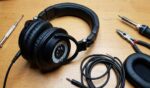
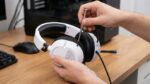
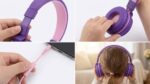

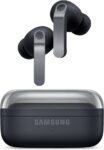

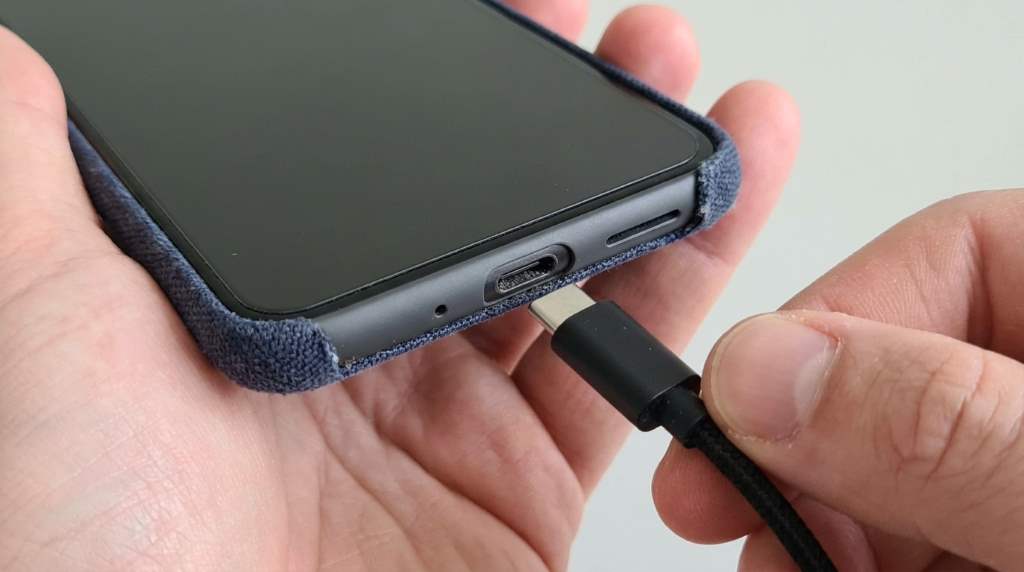
If your USB C headphones are not working, first check the USB C port, restart your device, and confirm audio output settings. Next, test the headphones on another compatible device to identify whether the issue comes from the headphones or the device.
Many modern smartphones and laptops now rely on USB C audio instead of traditional headphone jacks. Recent market reports show USB C devices continue growing rapidly, making audio compatibility more important than ever. Therefore, understanding common troubleshooting steps helps prevent unnecessary replacements. You can also explore reliable usb c headphones if you need compatible options for different devices.
Why USB C Headphones Stop Working
USB C headphones depend on both hardware and software working together correctly. Consequently, a small problem can completely stop audio output.
Unlike traditional headphones, USB C models contain digital components that communicate with your device. Therefore, compatibility issues appear more often than with older audio connections.
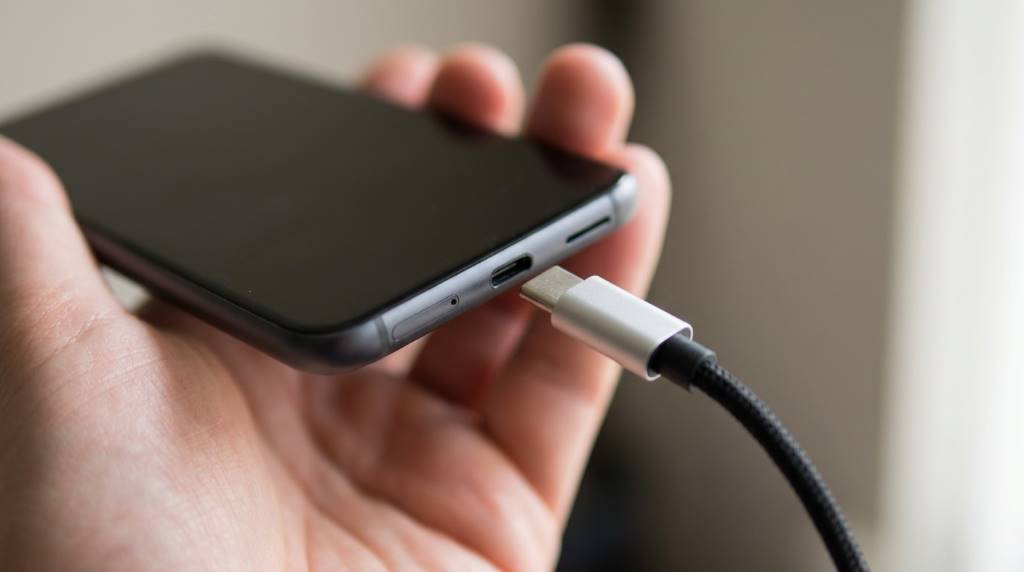
Check Whether Your Device Supports USB C Audio
Not every USB C port supports digital audio output. Some manufacturers only enable charging and file transfers through certain USB C ports.
Check your device specifications before trying advanced troubleshooting. Otherwise, you may spend time fixing a problem caused by unsupported hardware.
Restart Your Device First
A simple restart often clears temporary software errors affecting audio services. Moreover, restarting refreshes background processes without changing personal settings.
Disconnect the headphones before restarting your device. Then reconnect them after the operating system finishes loading completely.
Inspect the USB C Port
Look for Dust and Debris
Lint inside the USB C port prevents secure connections. Therefore, inspect the port carefully using a flashlight before inserting the headphones again.
Use a soft brush or wooden toothpick for gentle cleaning. Never use metal tools because they may damage the internal connector pins.
Check for Physical Damage
Examine the port for bent pins or loose connectors. Likewise, inspect the headphone connector for scratches, cracks, or broken contacts.
Physical damage usually requires professional repair or replacement. Continuing to force damaged connectors can create additional hardware problems.
Test the Headphones on Another Device
Testing another compatible device quickly identifies the actual source of the problem. As a result, you avoid replacing working equipment unnecessarily.
If the headphones work elsewhere, your original device likely has a software or hardware issue. However, failing on multiple devices usually indicates faulty headphones.
Verify Audio Output Settings
Sometimes the device selects another playback source automatically. Therefore, manually verify the active audio output before assuming hardware failure.
Open your sound settings and select the connected USB C headphones. Afterwards, play audio again to confirm the correct output device remains selected.
Increase the Volume
Check both device volume and application volume settings carefully. Occasionally, one volume control remains muted while another appears normal.
Also inspect accessibility settings that affect audio balance. Balanced left and right channels ensure proper headphone performance.
Update the Operating System
Operating system updates often include important audio driver improvements. Consequently, installing updates can solve unexpected USB C audio problems.
Connect to a stable internet connection before downloading updates. Afterwards, restart your device to complete the installation successfully.
Update Audio Drivers
Desktop and laptop computers frequently require updated audio drivers. Therefore, check the manufacturer’s support software for available driver updates.
Install only official drivers designed for your specific device model. Using incorrect drivers may introduce additional audio issues.
Disable Battery Optimization
Some aggressive battery settings interrupt USB accessories unexpectedly. Consequently, disabling optimization for audio applications sometimes restores stable playback.
Review battery management settings within your device preferences. Afterwards, reconnect the headphones and test audio again.
Disconnect Other USB Accessories
Multiple connected accessories occasionally create power or communication conflicts. Therefore, disconnect unnecessary USB devices before testing your headphones.
Reconnect accessories individually after confirming headphone functionality. This method helps identify conflicting hardware quickly.
Check Application Permissions
Some communication applications require microphone permissions for USB C headsets. Without proper permission, microphone functions may fail.
Review application privacy settings carefully. Then allow microphone access where appropriate before testing voice calls again.
Reset Sound Settings
Incorrect sound configurations sometimes remain after software updates. Therefore, restoring default audio settings often fixes unexpected playback issues.
Save important custom audio profiles before resetting preferences. Afterwards, reconnect your headphones for another audio test.
Common Problems and Solutions
- No sound after connecting: Restart the device and verify audio output selection.
- Audio cuts in and out: Clean the USB C port and inspect the connector.
- Microphone does not work: Check application permissions and input settings.
- Only one side works: Test another device to identify headphone damage.
- Headphones disconnect randomly: Update software and inspect the USB C port.
When You Should Replace the Headphones
Replace the headphones if they consistently fail on several compatible devices. Likewise, visible cable damage usually indicates permanent hardware failure.
Purchase certified products from trusted manufacturers whenever possible. Reliable models generally receive better compatibility and firmware support.
Tips to Prevent Future USB C Audio Problems
- Keep the USB C port clean.
- Disconnect carefully without pulling the cable.
- Install software updates regularly.
- Store headphones in a protective case.
- Avoid moisture and extreme temperatures.
- Use certified USB C accessories.
Conclusion
Most USB C headphone problems have simple solutions that require only a few minutes. Following these troubleshooting steps helps restore audio while avoiding unnecessary replacements.
Start with basic checks before considering repairs or new hardware. If the issue continues after every step, contact your device manufacturer or headphone support for professional assistance.
Frequently Asked Questions
Why are my USB C headphones connected but producing no sound?
Your device may have selected another audio output, or the USB C port may not support audio.
Can software updates fix USB C headphone issues?
Yes, operating system and driver updates often resolve audio compatibility problems.
Why does only one side of my USB C headphones work?
A damaged cable, connector, or internal speaker commonly causes this problem.
Should I clean the USB C port regularly?
Yes, regular cleaning prevents dust from interrupting stable audio connections.
How can I tell whether the headphones or device is faulty?
Test the headphones on another compatible device to identify the source of the problem.